


How to batch convert HEIC photos
- 1
Add a folder or many files
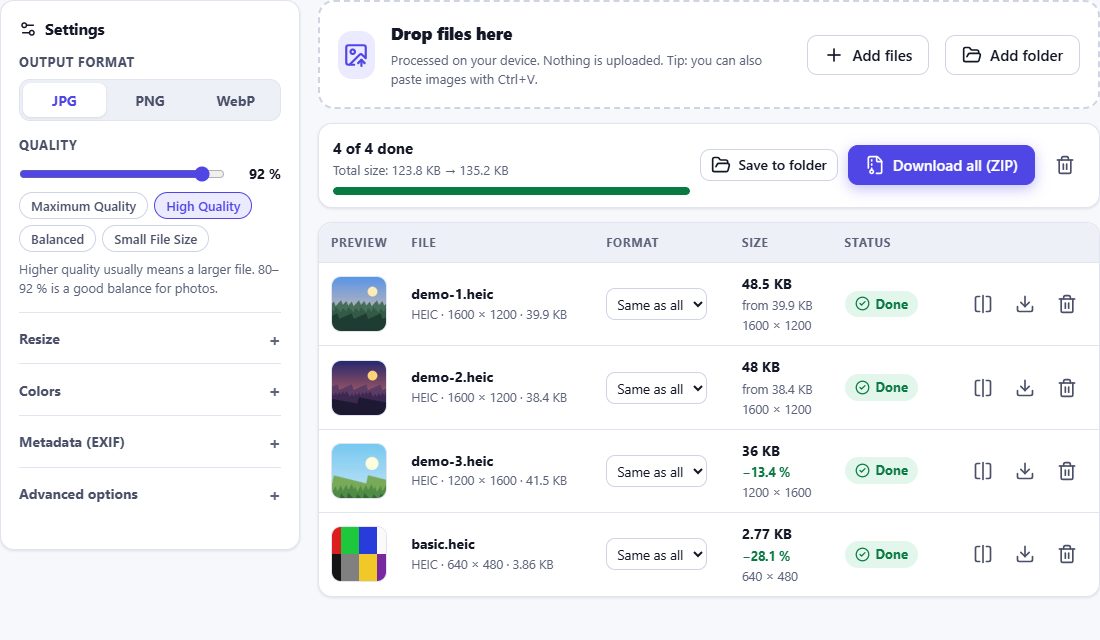
Drag a folder onto the box or use Add folder. Only image files are picked up – other files are ignored.
- 2
Set common options
Format, quality, size, metadata and file names apply to all photos. Individual files can use a different format.
- 3
Download the ZIP
When the queue is finished, download all converted photos as one ZIP archive. Failed files can be retried.
Built for large photo libraries
Converting hundreds of high-resolution photos in a browser needs careful memory management. HEIC Studio uses a job queue that converts only a few photos at a time (depending on your device), runs the decoder in Web Workers so the page stays responsive, and releases memory after each photo. Files are read from disk only when it is their turn.
Control over the whole batch
- Live progress with the number of finished and failed files
- Cancel at any time – running conversions are stopped immediately
- Retry failed files with one click
- Prefix, suffix and numbering for consistent file names
- Duplicate names are renamed automatically inside the ZIP
Frequently asked questions
How many photos can I convert at once?
There is no fixed limit. The practical limit is your device’s memory for the ZIP file: converted photos are kept in memory until you download them. On phones, batches of a few hundred photos work well; on computers, more.
Can I select a folder?
Yes, in browsers that support folder selection (Chrome, Edge, Firefox, Safari on desktop). You can also drag a folder onto the drop area.
What happens if one photo fails?
The others continue. The failed file is marked with the reason and can be retried after the batch has finished.
Will the ZIP be compressed?
JPG, PNG and WebP are already compressed, so files are stored in the ZIP without extra compression. Creating the archive is therefore fast.