


How to view HEIC photos
- 1
Open photos
Drop one or more HEIC files onto the box or click Choose Files.
- 2
Look around
Zoom with the mouse wheel or pinch, drag to pan, switch photos with the arrow keys or thumbnails.
- 3
Save if needed
Use Save as JPG to keep a compatible copy, or open the photo in the editor.
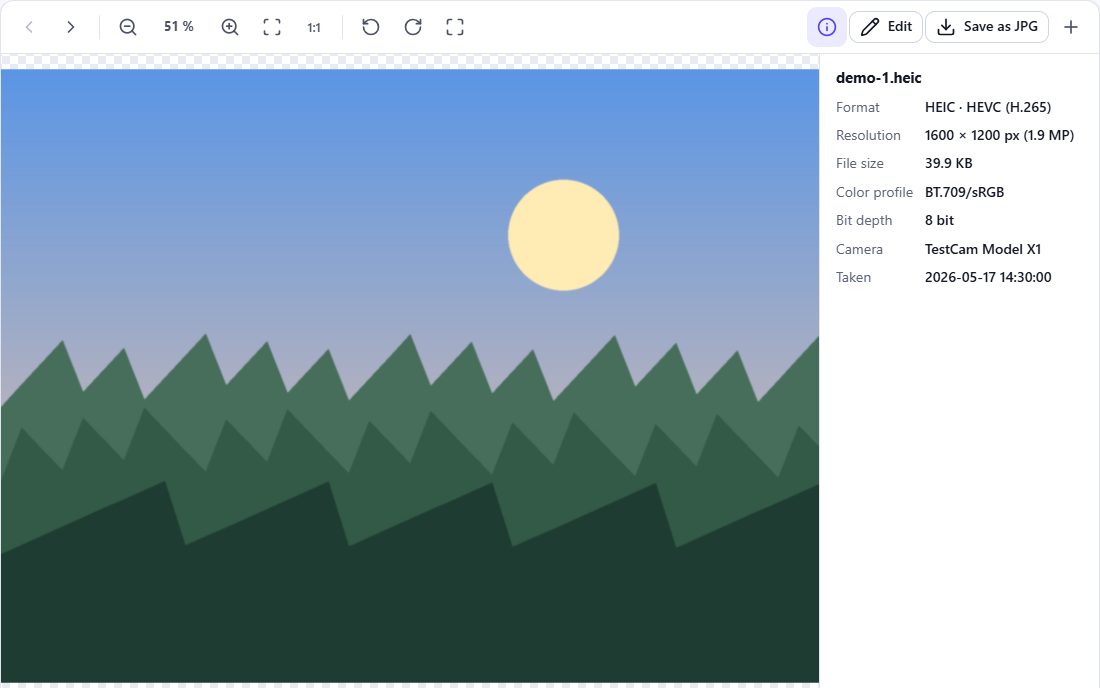
Viewer features
- Zoom in and out, fit to screen and actual size (100 %)
- Pan by dragging, pinch-to-zoom on touch screens
- Rotate in 90° steps, full-screen mode
- Thumbnail strip to switch between photos
- Information: resolution, file size, format, codec, color profile, camera and date
- Multi-image HEIF files: switch between the images inside
Keyboard shortcuts
| ← → | previous / next photo |
| + − | zoom |
| 0 | fit to screen |
| 1 | actual size |
| R | rotate |
| F | full screen |
Frequently asked questions
Why can’t Windows open my HEIC photos?
Windows needs the HEIF and HEVC extensions from the Microsoft Store, and browsers on Windows cannot decode HEIC either. See how to convert HEIC on Windows.
Is the viewer private?
Yes. The photo is decoded on your device; nothing is uploaded.
What if a photo cannot be displayed?
You will see an error explaining why – for example a damaged file or an unsupported HEIF variant – instead of an empty screen.
Can I view Live Photos?
The still image of a Live Photo is a normal HEIC file and can be viewed. The short video is a separate MOV file and is not shown.