


How to convert HEIC to JPG
- 1
Add your photos
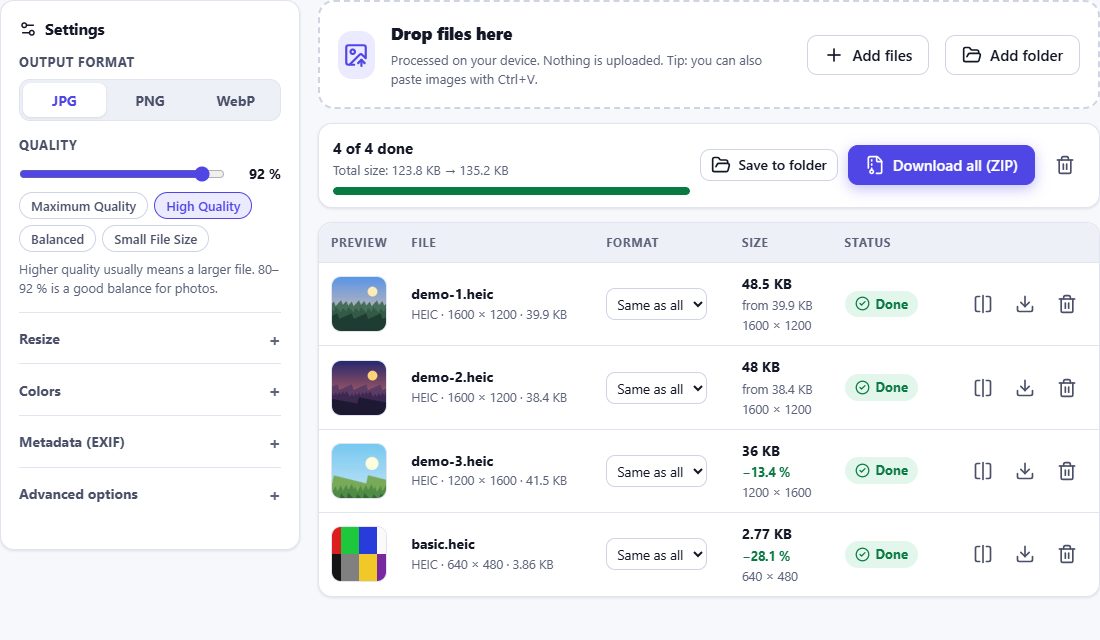
Drop HEIC files onto the box above or click Choose Files. You can add one photo or hundreds at once.
- 2
Pick format and quality
JPG is selected by default. Choose a quality preset, resize if you need smaller photos, and decide what happens to location data.
- 3
Download
Each photo can be downloaded on its own, or all of them together as a single ZIP archive.
Why convert HEIC to JPG?
iPhones and iPads save photos as HEIC (High Efficiency Image Container) because the format is roughly half the size of a JPG of similar quality. The catch: many Windows programs, older Android phones, online forms, printing services and websites still cannot open HEIC files. JPG opens everywhere, which makes it the safest format for sharing, uploading and archiving.
HEIC Studio uses the HEIC decoder built into your browser and keeps the original resolution unless you choose to resize.
Your photos never leave your device
Most online converters upload your photos to a server. HEIC Studio does not. Photos are decoded by your browser and converted on your device, so private pictures – family photos, documents, screenshots – are never sent anywhere. Once the page has loaded, the converter even works without an internet connection.
Location (GPS) data is removed by default. You can keep the date, camera and exposure details, or remove every piece of metadata. See the privacy page for details.
Quality that matches the original
- Correct orientation – rotation stored in the photo is applied, so photos never end up sideways.
- Consistent colors – colors are converted to sRGB, so the photo looks the same in every app and on every website.
- Full resolution – nothing is reduced unless you ask for it.
- Adjustable quality – from maximum quality to small files for e-mail.